How it works
Set boundaries how you want, when you want.
Here's exactly what happens from the moment you open Deadbolt to the moment you're locked in.
01
Set your combo
Easily create modes for whatever you need.
- Pick individual apps (social, games, streaming) or entire categories at once.
- Add specific websites to block in Safari and any other browser.
- Save your selections as a named Mode (Work, Sleep, Gym) so you never have to set it up twice.
- Build as many modes as you need. Switching takes one tap.
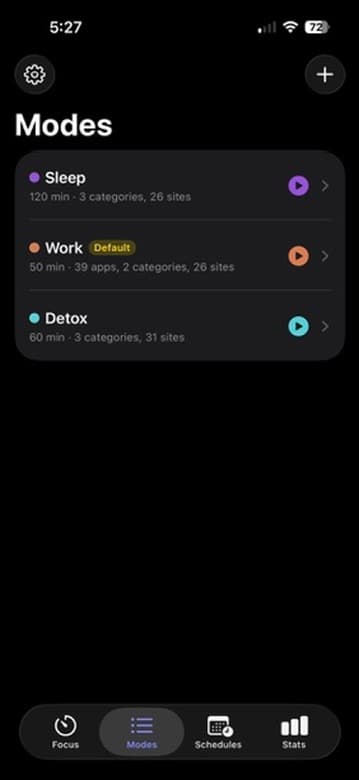
Choosing what to block in Deadbolt's mode builder
02
Lock out
Start with a tap, a schedule, a location, or a friend.
- Select a mode, set a duration, and tap the lock. That's it.
- Deadbolt hands the block list to iOS's Screen Time framework, which enforces it at the OS level.
- Blocked apps go grey instantly. Safari blocks kick in too.
- When the timer expires, everything lifts automatically. No action needed.
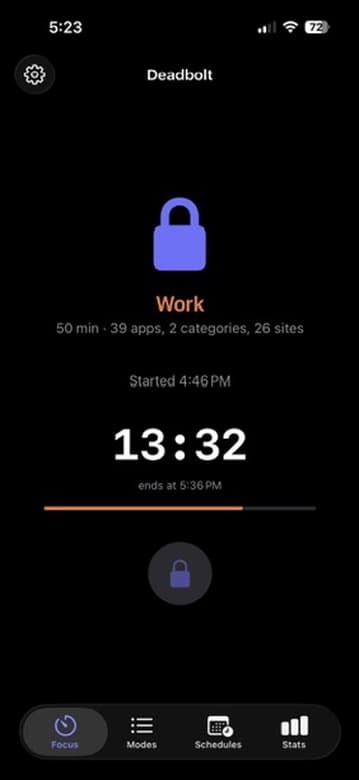
The lock screen: one tap starts the session
03
Lock in
Stay distraction free until you make the conscious choice.
- Choose your unlock challenge when you build the mode: passcode, NFC tap, QR scan, friend approval, delay countdown, or geofence.
- Stack multiple challenges for extra commitment, e.g. a delay countdown plus a friend's approval.
- The challenge is waiting if you try to quit early. Most of the time you just keep working.
- Sessions always auto-expire within 24 hours, so you can never be permanently locked out.
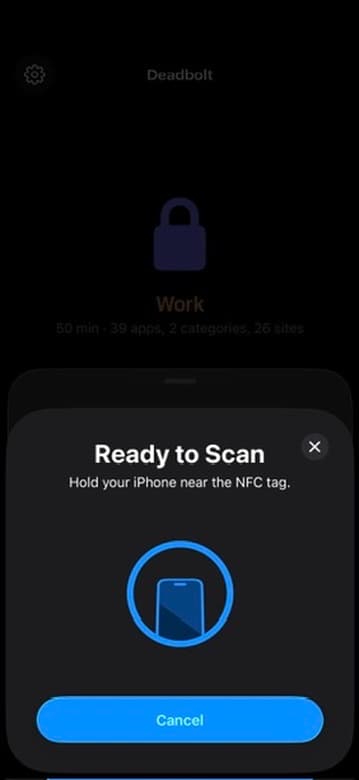
Picking an unlock challenge before throwing the bolt
Private beta · iOS
Get the key first.
We're onboarding beta testers in small waves via TestFlight. Drop your email and we'll send an invite when your slot opens.
Free in beta · $3 one-time at launch · no subscription